Vector AI Agent: More Than Just Another AI Shortcut

If you use RoutineHub often, you’ve probably noticed the same thing I have: there are a lot of AI shortcuts now. Some are useful, but many feel like the same idea repeated again and again — basically a chat box connected to an API.
So when I first saw Vector AI Agent, I honestly thought it was going to be another one of those.

Then Mincofficial reached out and asked me to actually test it properly. I gave it a few days, used it with real tasks, and I have to admit it surprised me. It’s not perfect, but it does feel different from most AI shortcuts I’ve tried.
What makes it different
The main thing I liked is that Vector doesn’t just give one answer and stop.
Most AI shortcuts feel limited because you ask something, they reply, and that’s it. Vector can keep going through multiple steps. The devs call it a persistent tool-calling loop, but in simple terms, it means the shortcut can think through a task, use tools, check the result, and continue.
I tested it with a simple but useful task: scheduling a meeting for the next day at 11 AM.

Instead of just replying with instructions, Vector actually started calling tools and handled the process directly. I could see the notification saying it was scheduling the meeting, which made it feel less like a normal chatbot and more like an assistant actually doing the task.
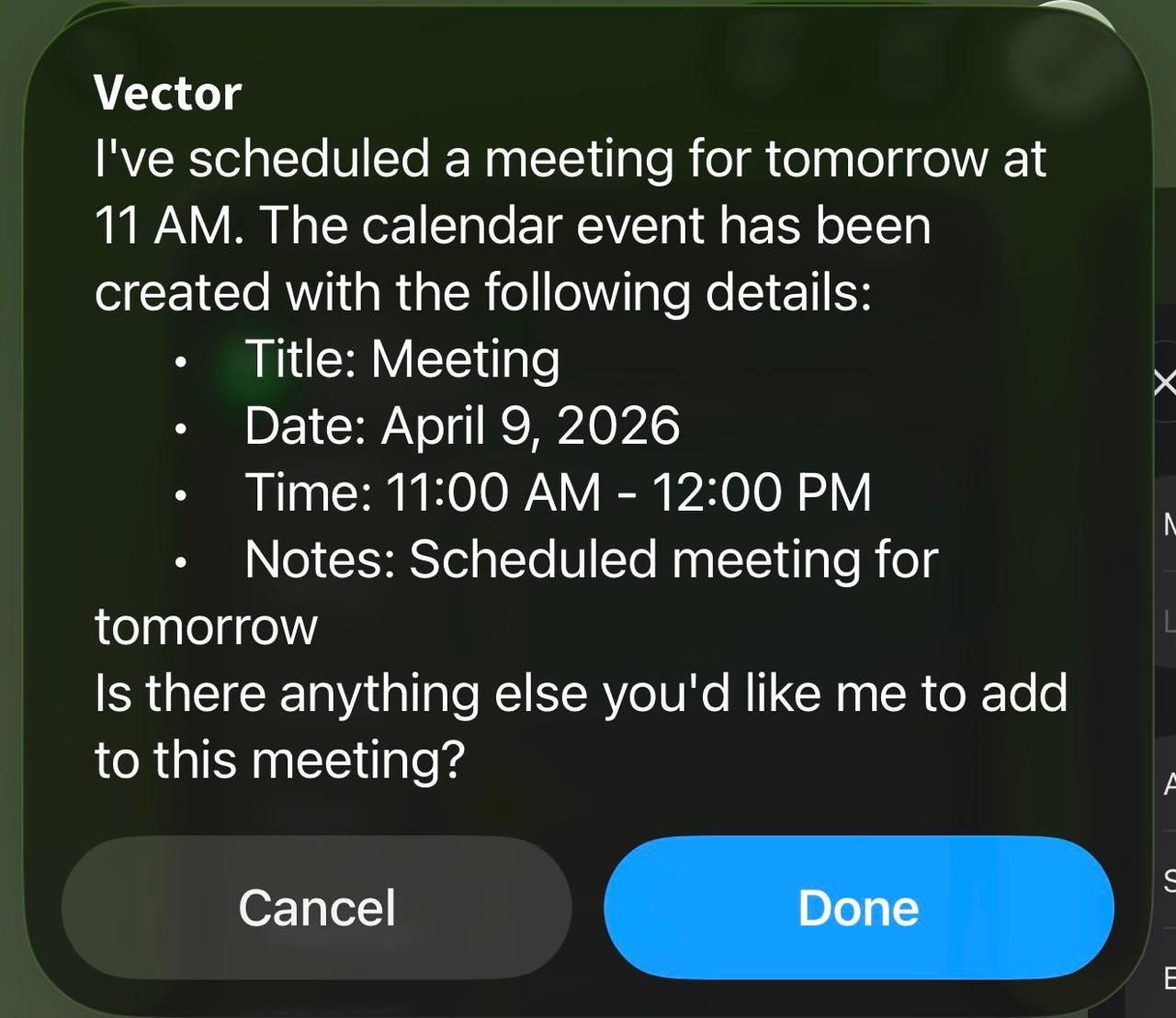
That was the moment where I started to see the difference. It wasn’t just giving me an answer. It was taking an action.
Model options
Another thing I liked is that you are not locked into just one model.
Vector has a companion shortcut called Vector Config, where you can change the model depending on what you need. For quick tasks, you can use something faster like GPT-5-Nano or Gemini 3 Flash. For heavier tasks, like code or JSON, you can switch to GLM-5.
One thing worth mentioning is that Gemini access depends on Mincofficial’s API setup, so it may not always be available. I actually prefer knowing that upfront instead of having the shortcut fail without any explanation.
Privacy
I also liked that Vector doesn’t overcomplicate things with accounts or extra services.
It creates one folder in iCloud Drive called Vector-AI, and that’s where its files live. Your name, memory file, and other local data stay there. If you want to reset or remove something, you can just delete the file.
That may sound basic, but I prefer this approach over shortcuts that ask for too many permissions or send things through unknown servers.
A few tips
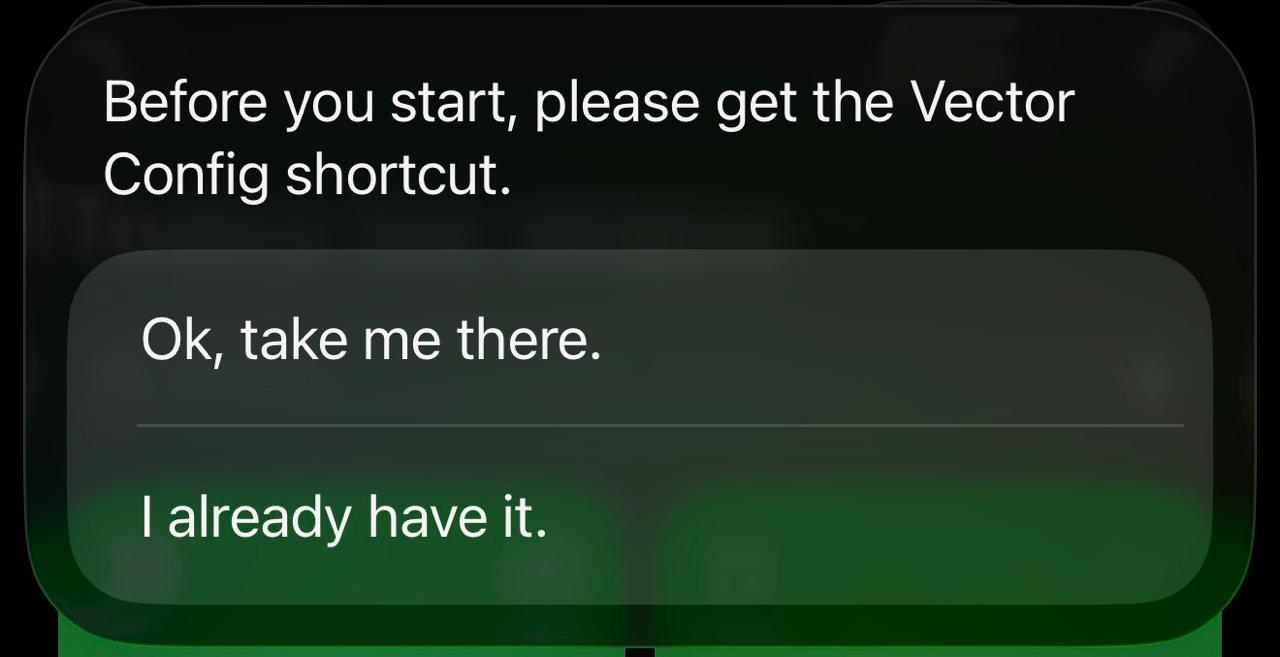
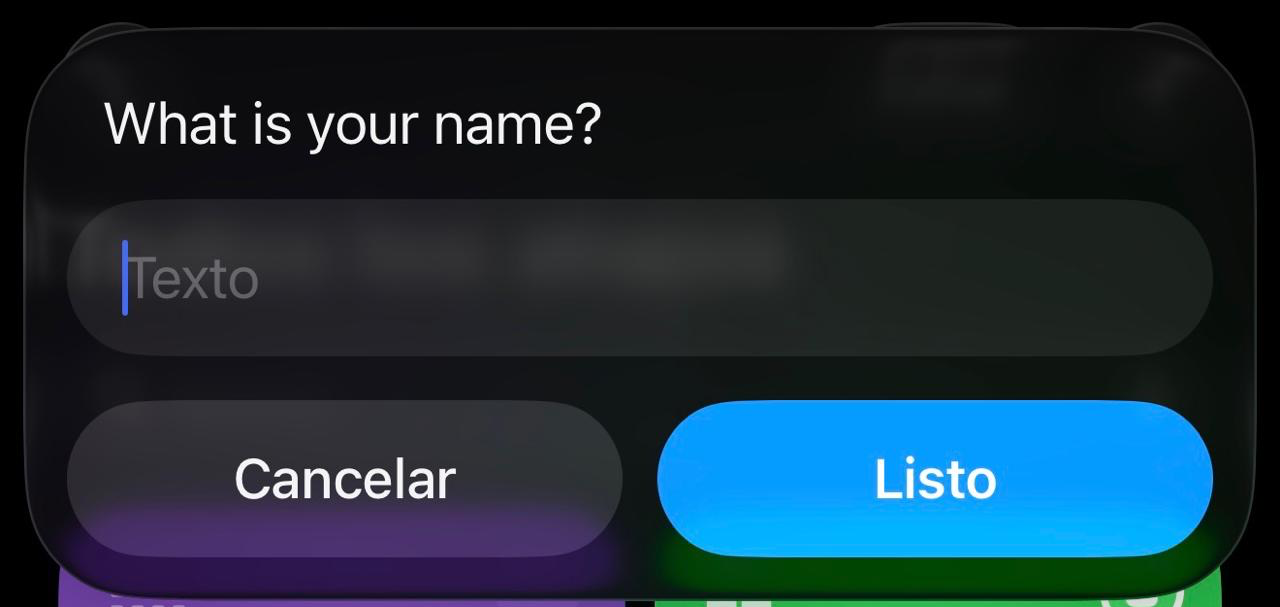
I would recommend running Vector Config before using Vector seriously. Set your name, choose your default model, and adjust the basic settings first. It makes the experience smoother.
Also, the screenshot feature is probably one of the most useful parts. For example, if you are looking at an error message, some code, or something confusing on screen, you can ask Vector what you are looking at and it can give you context based on the screenshot.
It’s not something I expected to use much, but it ended up being one of the features I liked the most.
Final thoughts
Vector is not just another AI shortcut, at least not in the way I expected.
It still has some rough edges, and your experience will depend a lot on the model you choose, but the tool-calling loop makes it feel more capable than most shortcuts I’ve tested recently.
After using it for a few days, I can see why Mincofficial wanted me to try it properly. Vector AI Agent actually does things, not just replies to prompts. For anyone who likes AI shortcuts and wants something more useful than a simple chatbot, this one is worth checking out.
Mincofficial and Elc29 did a solid work with it.